Create Your Ideal Code Details Page
- By Deborah Marsh
- In Uncategorized
- February 3, 2025
- Comments Off on Create Your Ideal Code Details Page
Speed your workflow in Codify by customizing the display of tools.
Having a lot of coding data at your fingertips is great, but having it organized in a way that suits you is even better. You can do that in Codify by AAPC! On code details pages, for example, you can change the default layout by minimizing/maximizing tools and rearranging them. Here’s an example using a default CPT® code details page for 99213, shown in Figure 1. (The boxes and tools available to you will vary based on your Codify package.)
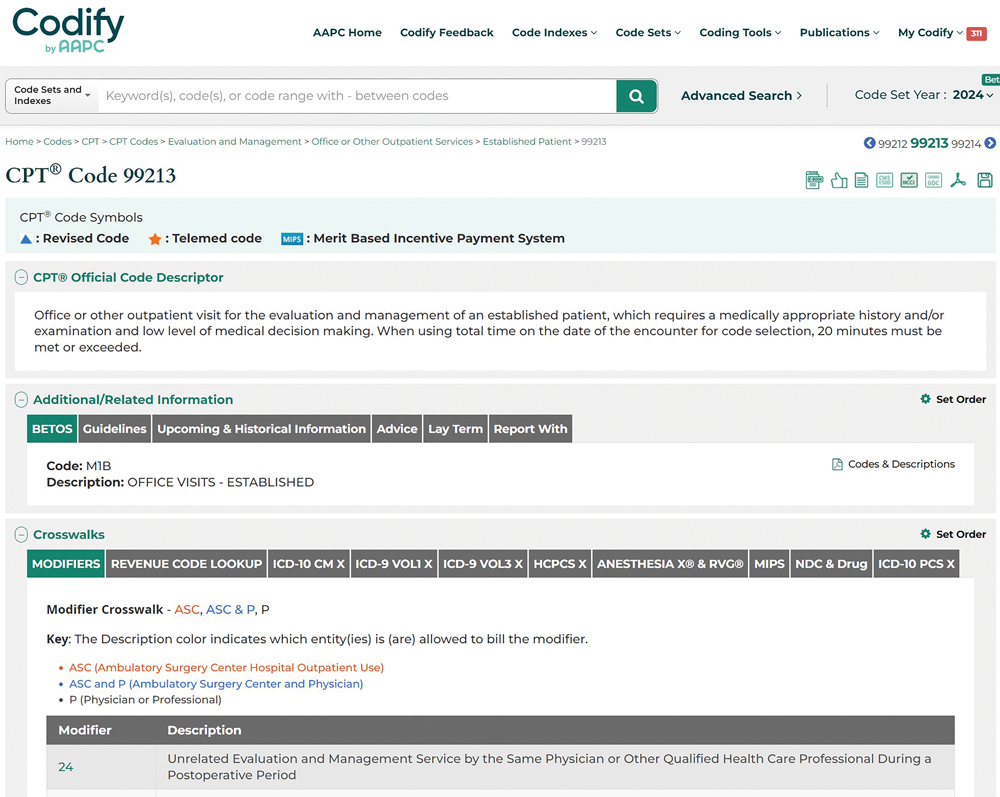
Minimize/maximize: Minimize a tool you don’t use often or that takes up a lot of space by clicking the minus sign at the top left of the box. The next time you need to use the tool, simply click the plus sign on the top left of the box to maximize it.
Drag and drop: You can also change the order of the tools on a code details page. Simply click and drag a tool higher or lower on the details page. This option allows you to move your most used resources to the top of the page.
Bonus: To change the order of the tabs in each toolbox, simply click on Set Order, located at the top-right corner of the toolbox. In the resulting window, specify the order for each tab and whether to show or hide the tab. Click Save Setting to keep your changes.
Save: When you are done arranging the tools to your liking, click the Save icon at the top right of the details page to save your new default layout (ours is shown in Figure 2). A popup box will appear to let you know the settings have been saved.
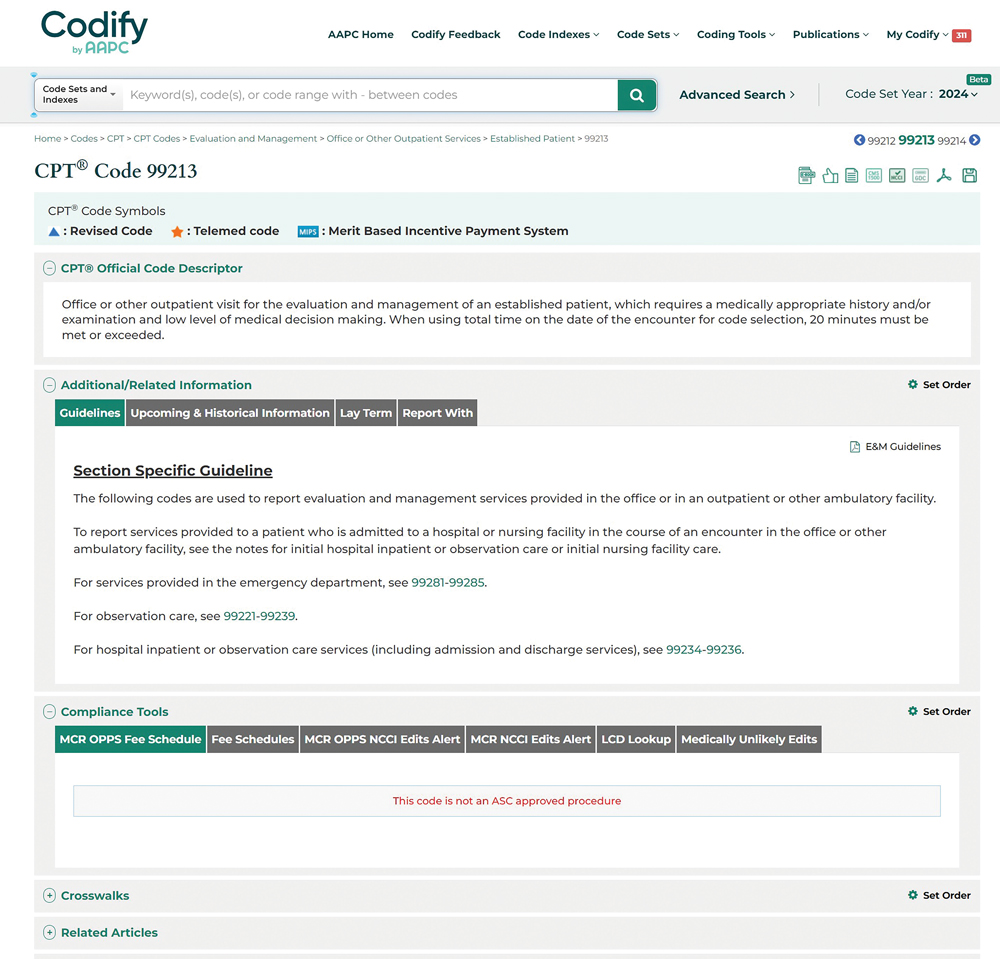
Repeat these steps for all the code sets you use to customize Codify the way you work and to optimize your productivity.

- Access Your Favorite Articles in Codify - February 2, 2026
- Codify Bonus: A Vast Library of Content to Expand Your Knowledge - December 1, 2025
- Search Faster With Smart Search - October 1, 2025